Posted by
M Taha
at
4:28 PM
The web service, which has been officially announced on WhatsApp's is here but it it relies on the mobile WhatsApp application
Follow the simple three steps to use it.
Step One:
Update your Whatsapp Application on the phone.
[Android, Blackberry and Nokia S60 are supported up til now]
Step Two:
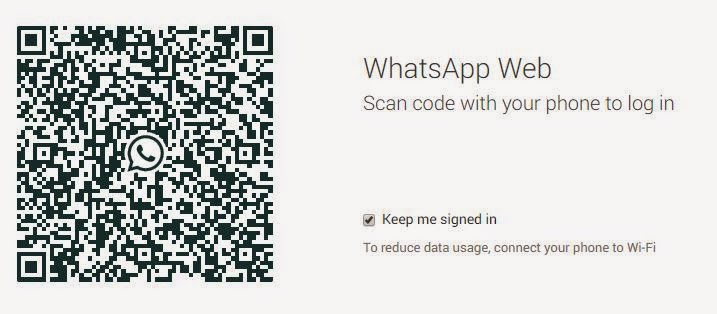
Go to Menu and Select "Whatsapp Web" it will open your camera application instantly
Step Three:
Use your Google chrome and open https://web.whatsapp.com
Scan it with your mobile camera,
You will be immediately logged in automatically.
That's All..... Enjoy !!!
Posted by
M Taha
at
9:04 AM
iFree Skype Recorder
Your 100% Full Version Skype audio call recorder
iFree Skype Recorder is a powerful and easy-to-use tool for recording Skype calls. You can free use it to record any Skype calls' audio streams.
It has the following advantages:
- - It's FREE with no limits attached.
- - Automatic or manual recording capabilities.
- - Easy to be used in recording any type Skype calls's audio streams.
- - Choice to record Skype calls different side(Local/Remote).
- - Store your any Skype calls to MP3 format (Using Lame MP3 Encoder).
- - Automatically chat reply when you leave computer.
- - Easy to track record history.
- - Built-in mp3 player.
- - Very easy to use.
-OR-
Installation instructions
- 1, Double click the iFreeRecorder.exe file you have downloaded. Click the "Next" button in the window of the installation program until navigate to the last page. and make sure you have Skpye installed.
- 2, iFree Skype Recorder will try to connect to Skype on the first start, and will be waiting for authorization.
- 3, Click "Allow Access" button to allow iFree Skype Recorder to use Skype when it pop up below message on the Skype.
- 4, Click "Start Recording" button to record the Skype call when the call connected.
Posted by
M Taha
at
12:54 AM
Configure Audio Recording Redirection in Windows 7 & 8 and Server 2008
Windows 7 and Windows Server 2008 R2 let you redirect your audio recording device to a Remote Desktop session by using Remote Desktop Connection and the Audio Recording Redirection feature.
It Only Applies to:
·
Windows 7 Enterprise
·
Windows 7 Ultimate
·
Windows 7 Professional (Not Supported)
Settings on your computer:
Type MSTSC at RUN and Click "Show Options" Click "Local Resources" -> Remote Audio Settings.
Settings on Client Computer:
Goto Registry Editor by typing at RUN Regedit,
The following registry subkey can disable/ enable the Audio
Recording Redirection feature:
HKLM\SYSTEM\CurrentControlSet\Control\Terminal
Server\WinStations\RDP-Tcp
Find fDisableAudioCapture
And set its value to “0” without quotes,
You are done now, check settings by opening sound recorder at remote station.
(make sure your system's MIC is working properly)
Whatsapp for Desktop - How to Use it FreeSkype Recorder Free Full Version DownloadRemote Audio and Microphone (Redirection) Settings RDP Windows 7 & 8 Server 2008 ~ Technology